Understand location, recordings, invoices, backup and deletion.
Read privacy details → DRILORE
Current app · practical instructions
Your Drilore owner handbook.
What each function does, how to use it and what not to assume. Choose a topic below for the current iPhone and Android private beta.
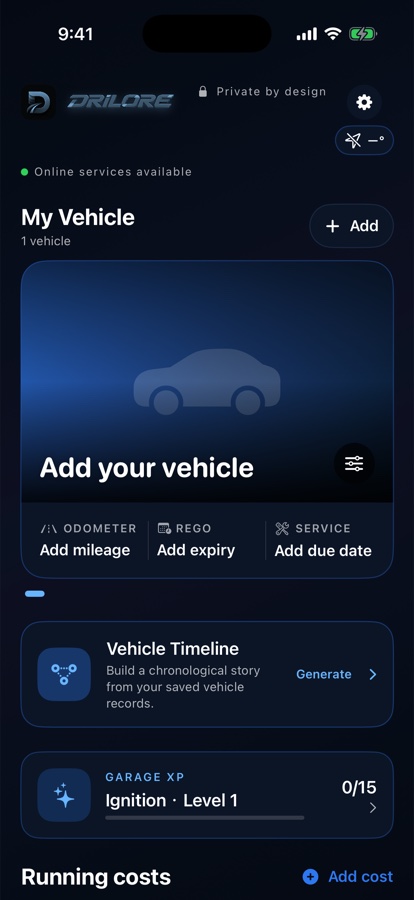
Start with the right vehicle
Find your task. Expand the steps.
The Garage connects costs, evidence and reminders to the same vehicle. The topics below describe current behavior, platform differences and limits. This is an earlier 1.1 simulator example with no customer data; newer layouts may differ.
Feature review: 26 September 2026. Current status: private beta.
中文完整使用说明 →01 · OWNER GUIDEYour vehicles and timelineOpen +
Create a separate local record for each vehicle, then select the right vehicle before adding anything.
- Add make, model, year, plate, state, photo and odometer. VIN is optional for the Garage; specific checks may need it. The bundled vehicle selector is a reference snapshot, not a complete VIN decoder or guaranteed list of every Australian car.
- Confirm Rego and service dates yourself. Keep odometer readings current; there is no automatic connection to the vehicle.
- Generate a timeline from saved vehicle and expense history when you need it. Review the original entries to correct a wrong date or vehicle.
02 · OWNER GUIDESeven cost categories, one reviewable ledgerOpen +
Record fuel, charging, service, repair, car wash, insurance and finance.
- Select a category, enter the actual amount and transaction date, and add the relevant odometer reading, supplier and receipt. Fuel uses litres; charging uses kWh. Check recognised totals, discounts and non-fuel fees against the receipt.
- Insurance and CTP records can hold provider, policy reference, contact, expiry and notes. Finance records hold manually entered loan or lease details; they do not connect to your bank.
- For washing, retain membership-card photos, expiry and remaining-visit details. These are your records, not a live balance from the car-wash operator.
- Filter by one or all vehicles, date and category. Review annual and category totals; cost per 100 km needs sufficient meaningful odometer history.
03 · OWNER GUIDEOne service invoice with several pagesOpen +
Add pages → review and save. Up to 12 photos belong to one service or repair, not 12 separate expenses.
- Choose Service or Repair for the correct vehicle. Photograph or select all relevant pages of the same invoice, keeping headings, workshop details, dates, totals and page edges visible. Check the order; replace a page if necessary.
- Recognition runs on your device. Review the workshop name, actual service/invoice date, total, odometer and work performed. A vehicle purchase contract date or future booking is not evidence that a service took place.
- If text is blurred, incomplete or garbled, retake a complete page or correct the fields manually. You can retain the original photos and finish by manual entry; OCR is assistance, not a requirement to trust the draft.
- Review completed work separately from suggested future work. Only approve recommendations that genuinely belong to this vehicle and visit.
- For a confirmed service, review the next-service suggestion: normally 12 calendar months after the confirmed service date. Adjust the date and items to the manufacturer/workshop schedule; iPhone also offers a next-service odometer field. Twelve months is not suitable for every vehicle. Confirm before updating the reminder.
04 · OWNER GUIDECorrect earlier records and review recommendationsOpen +
A past recognition mistake should be corrected in the record, not silently treated as verified history.
- Open the original service or repair entry and compare it with its saved pages. Use review/rescan where offered, or edit the fields manually; confirm changes before saving.
- Check merchant, transaction date and odometer together. Do not turn a purchase contract, quotation or booking into completed service history.
- Review suggested work separately; mark a recommendation completed only after it is done, and reopen it if marked accidentally.
- An older service must not push a newer next-service reminder backwards. An already expired suggested date should not become a new future reminder; review the vehicle’s current due date.
05 · OWNER GUIDERego, service and monthly remindersOpen +
Dates and notification permission work together; neither replaces checking the vehicle.
- Set accurate Rego and next-service dates for each car and allow notifications. Rego uses 30, 7 and 1 day reminders; service uses 14, 7 and 1 day reminders.
- Monthly fuel and charging comparisons use your recorded costs. Update the record after renewing Rego or completing a service.
- Review system notification settings, Focus/Do Not Disturb and the app’s settings if a notice is missing. Mileage does not update automatically, so keep the odometer current.
06 · OWNER GUIDEVehicle widgets and weatherOpen +
A compact view of saved information, with platform-specific layouts.
- On iPhone, add a Home Screen widget and select a vehicle; supported Lock Screen widgets show the nearest Rego or service due item.
- On Android, add the Home Screen vehicle widget for the selected car’s photo, odometer and due information. Do not expect the same Lock Screen options as iPhone.
- Weather uses Open-Meteo with location permission and caches current conditions. Refresh timing is managed by the OS; the displayed information can lag a change in the app.
07 · OWNER GUIDEFuel, charging and map searchesOpen +
Use provider-reported information to plan a stop, then record what actually happened.
- FuelCheck price searches currently cover NSW and Tasmania. Choose fuel grade and suburb/postcode or request nearby results. Confirm the actual bowser price before buying.
- Open Charge Map supplies charging locations, connectors, reported power and available access/operator information. Check the operator for working status, live bay availability, pricing and payment.
- A nearby car-wash search opens Apple Maps on iPhone or the installed map service on Android. Listings and navigation belong to that provider.
- Optional weather uses current coordinates. A search result does not prove a transaction: save the actual amount, litres or kWh in the correct expense.
08 · OWNER GUIDEEmergency and provider detailsOpen +
Keep important contact information available before you need it.
- Save insurer, CTP and roadside provider names, phone numbers and policy references. Review blanks and outdated contacts.
- On iPhone, the emergency-information card brings available vehicle and provider details together and offers calls for valid numbers. Missing information remains clearly missing.
- On Android, use call actions from saved provider details; a matching dedicated iPhone emergency card is not claimed.
09 · OWNER GUIDEUnderstanding a vehicle recall noticeOpen +
This is contextual help for a notice on your vehicle, not a separate promoted recall product.
- A supported check requires a valid 17-character VIN and vehicle make. Without these, no recall check is triggered.
- The make is used to request candidate official notices. Relevant published VIN lists are downloaded and compared with your VIN on the device; your VIN is not sent to the Drilore recall API.
- An exact positive match can show a notice linked to the official recall information. Follow the notice and contact the manufacturer or authorised dealer; a match does not tell Drilore whether the work has already been completed.
10 · OWNER GUIDEDriving camera alerts — limited development betaOpen +
Test-device support for NSW fixed speed/red-light sites; not a public, nationwide or complete safety service.
- Before driving, turn Camera Alerts on in the app, allow the required location/background and notification permissions, and check readiness. On iPhone the preference is remembered; on Android swiping the app away or explicitly force closing ends the session and requires turning alerts on again. Leave the app/service running for background use; OS termination, permission loss or turning alerts off can also stop delivery.
- Approach stages target approximately 500 m and 150 m, describing the camera type and distance. A short double tone marks the near/passing stage. There is no 1,500 m alert. GPS, travel direction, data precision and audio routing affect actual timing; exact distances are not guaranteed.
- On iPhone, a camera-event notification can appear outside Drilore; ordinary “enabled/ready” status must not produce repeated popups. On Android, background operation also requires an ongoing foreground-service status notification, with a stop action; this is separate from a camera warning.
- Phone audio may play through a connected car depending on system routing. There is no dedicated CarPlay/Android Auto screen or guaranteed notification on the car display.
11 · OWNER GUIDESystem voices and your own recordingsOpen +
Choose an available device voice or record only the camera messages you want to customise.
- In camera alert voice settings, select an available system voice or custom recordings. Voice availability depends on the installed device voices.
- Use the supplied camera-type and distance prompt. Recording starts after a 3-second countdown and is limited to a short clip of up to 8 seconds. Preview it before keeping it.
- You do not need to finish every recording: missing custom slots fall back to system speech. Follow the script shown on your platform: iPhone supplies the distance before your camera-type clip; Android plays your complete recorded type-and-distance message.
12 · OWNER GUIDECSV for review, not restorationOpen +
Choose which expense rows to share with a spreadsheet or accountant.
- Filter the ledger by vehicle, date and category. Export the relevant rows, with supplier, invoice, GST/ABN, payment, odometer, work-item and note fields where recorded.
- Review the actual file before sending it. It can contain plate/vehicle identifiers, supplier contact details and private notes; CSV is not automatically anonymous.
- Keep original invoices. Use encrypted Garage backup, not CSV, when moving devices or protecting the full Garage.
13 · OWNER GUIDEEncrypted backup, moving devices and restorationOpen +
Create a .drilorebackup file before a phone change or beta update; keep the original until recovery is verified.
- Use Export My Garage and a password of at least 10 characters. Store the file somewhere you control and keep the password separately. There is no password-reset or recovery service.
- The file includes supported vehicle records, expenses, photos, preferences and achievements. Custom camera recordings are excluded. It is protected with password-derived encryption, not merely renamed as a private file.
- On a compatible current iPhone or Android version, select Restore and confirm the file and restore mode. Prefer merging when retaining existing records; conflicting content with the same record ID can be rejected rather than automatically resolved. Choose replacement only when you intend to replace the current Garage. Do not assume both platforms offer a preview. Validation and local safety snapshots reduce risk, but do not replace a separate backup.
- After restoring, check vehicle count, dates, totals and original photos before removing an old device or backup. Moving a backup is manual: there is no continuous Cloud Garage or family sync.
14 · OWNER GUIDESharing, care achievements, language and themeOpen +
Personalise your own app and share a selected summary, not the whole private database.
- App languages are Australian English, Simplified Chinese, Traditional Chinese, Japanese, Korean, Spanish, French and German, with a follow-system option. Five themes are available. Website translation currently covers English and Simplified Chinese.
- Care achievements and Garage XP encourage useful records and maintenance, not speed or distance competition. There is no public leaderboard or owner feed.
- In Share Studio choose a Garage, annual or trophy summary. Review vehicle-name, photo and exact-spending options. The generated text omits VIN and plate fields, but a photo can still reveal a plate, person or location.
15 · OWNER GUIDECurrent beta versus future plansOpen +
The website describes the current private beta, not an App Store/Google Play public release.
- The shared Garage, cost, invoice-review, backup and preference workflows are implemented on iPhone and Android. iPhone requires iOS 17 or later; platform UI and OS behavior differ.
- Automated checks and builds are not the same as testing every phone or route. Recent iPhone road testing does not prove Android background-alert acceptance on every manufacturer’s battery settings.
- Public distribution still depends on third-party vehicle-catalogue permission and camera-data approval/freshness. Current screenshots are earlier 1.1 simulator examples with no customer data; newer layouts may differ.
Each provider has its own boundary; official does not mean live or complete.
See providers →Implemented, under validation and planned are different states.
See beta status →